Showing posts with label KingDraw. Show all posts

Wednesday, February 22, 2023

KingDrawTutorial丨How to Beautify Chemical Structures? A KingDraw “Magic Book” For You.

How to draw a standard and beautiful structure? 👀💬

It is a problem that plagues many novice users. In this ‘Magic Book’, we have summarized several tips to improve your drawing aesthetics. 

Let's get it!


Wednesday, October 28, 2020

KingDraw PC|KDpedia Introduction

 KingDraw on PC adds new functions-[KDpedia] module officially unveiled!

Image for post

[KDpedia] contains 150 million compound data, supporting detailed query of compound information, and 7.5 million compound information has been associated with worldwide suppliers for easy consultation and purchase.

Let’s get it!

How to use [KDpedia]

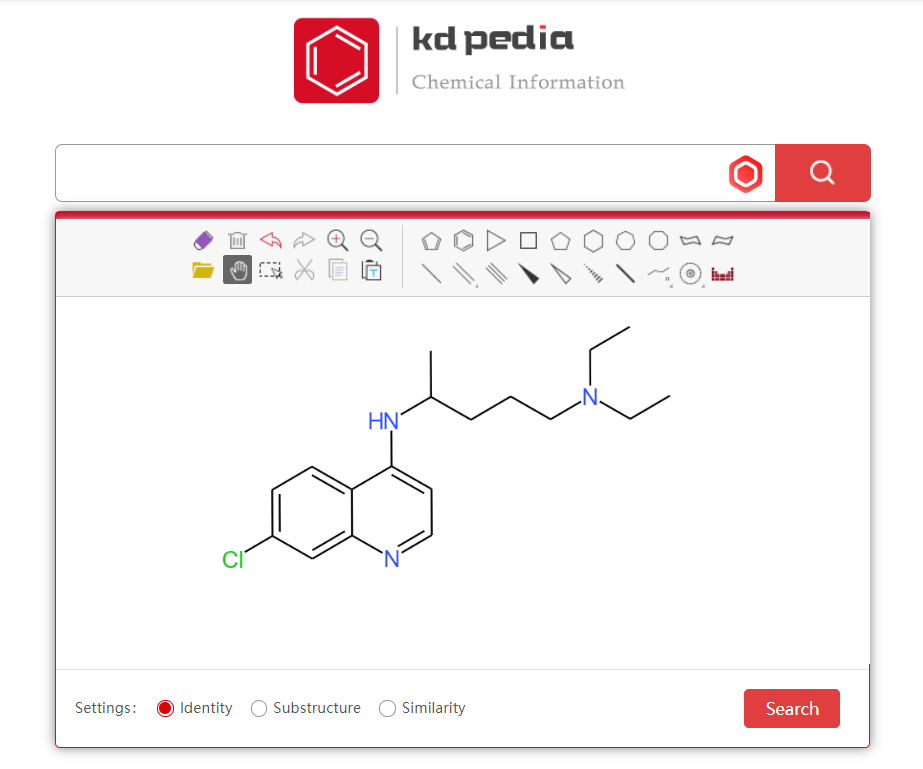
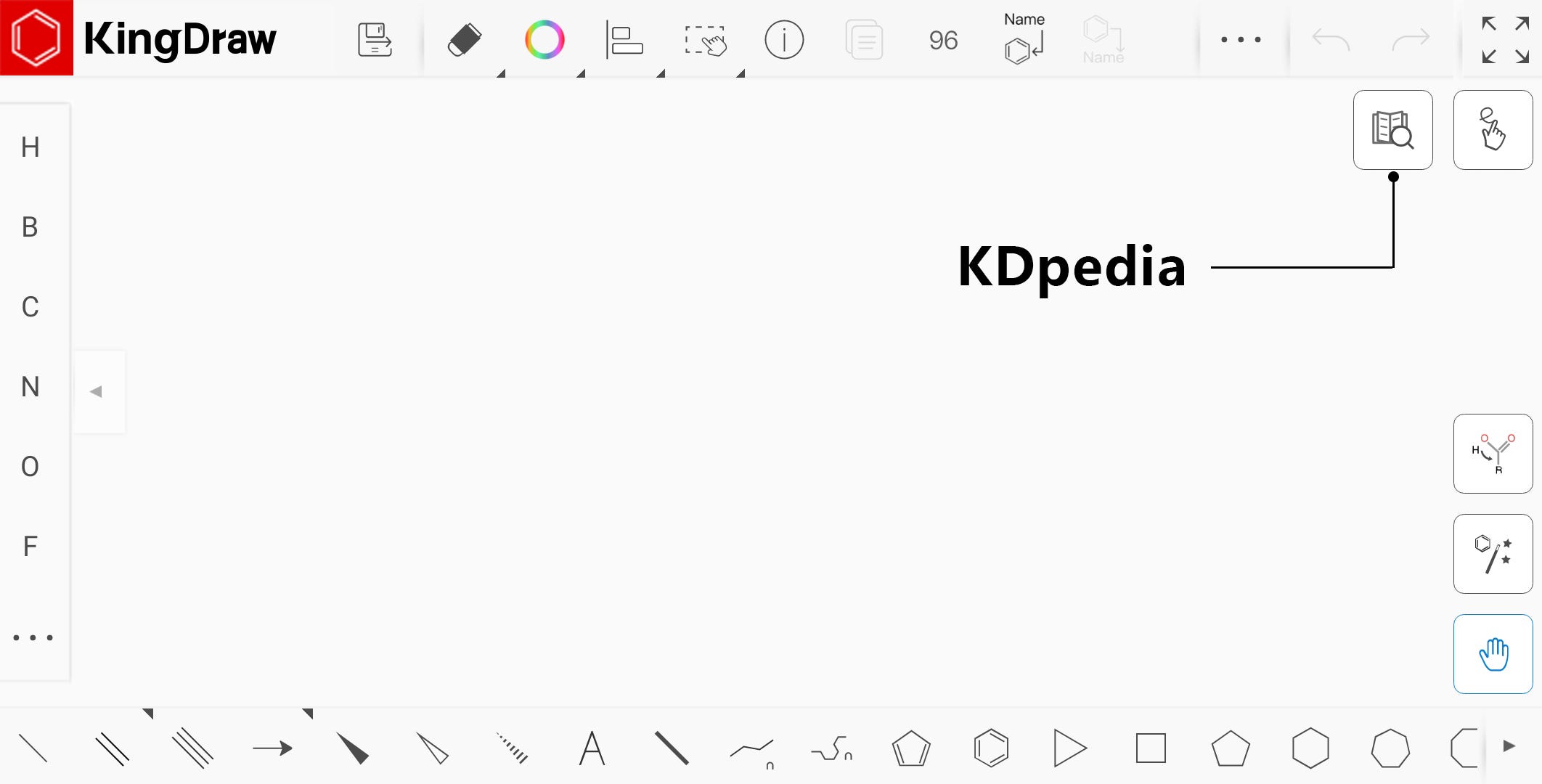
The [KDpedia] is in the toolbar. It supports direct search by selecting the structural formula in the box, and it also supports clicking to enter the page to query.

Image for post

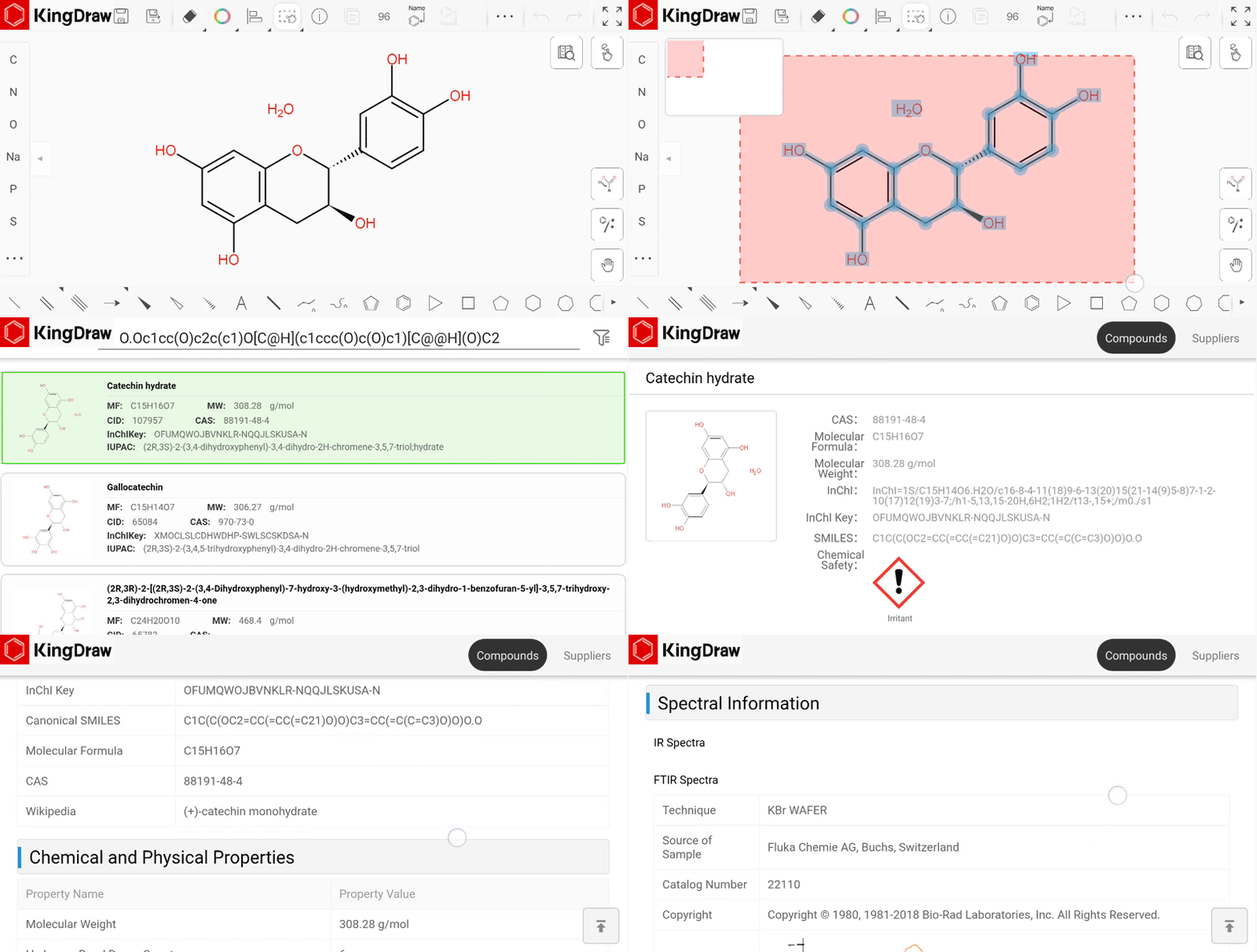
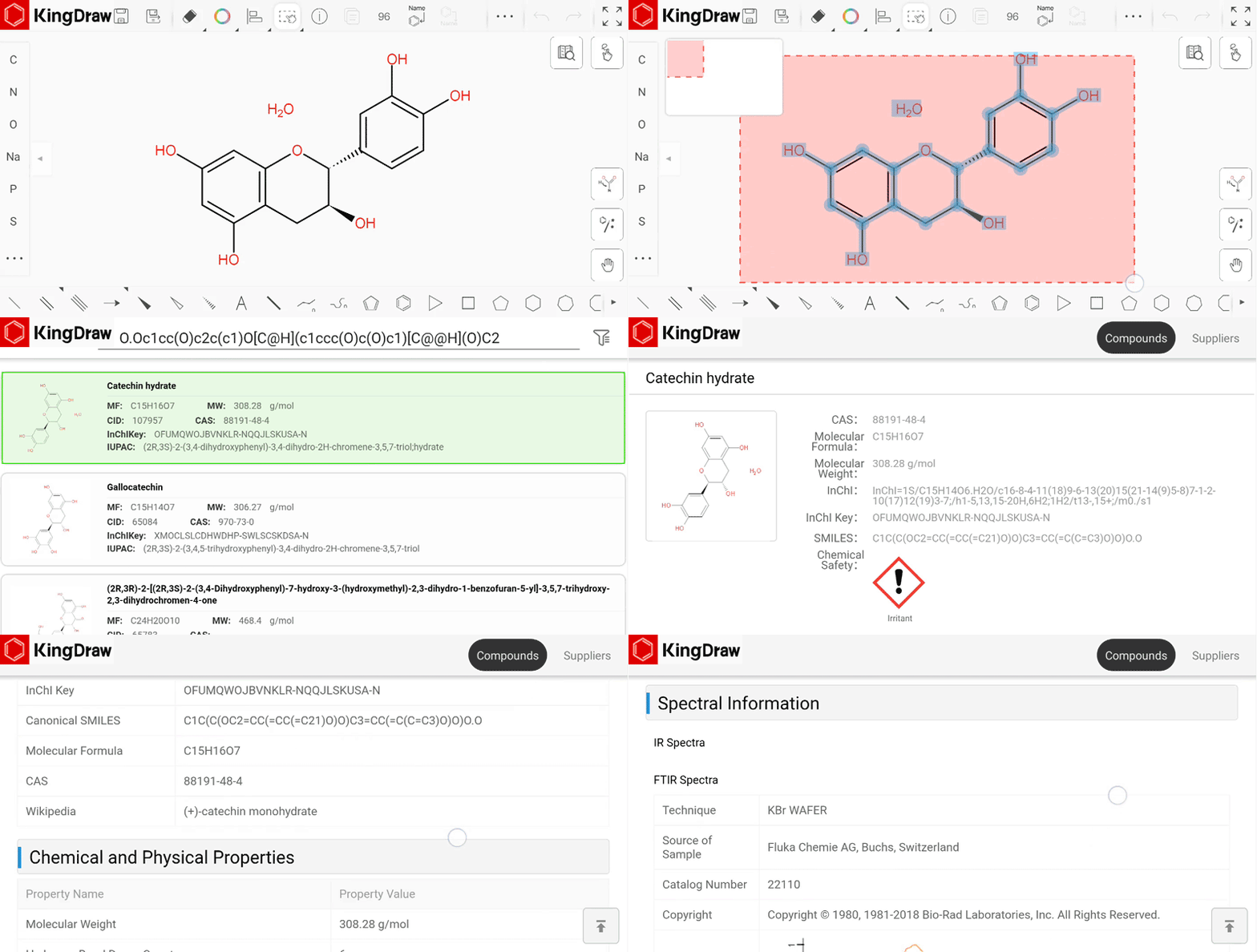
Query compound details by structure

On the KingDraw canvas, use the [Marquee Tool] to select the structure you want to query, right-click and select [Search Structural] → [KingDrawpedia] in the menu to search for related compound information in the [KDpedia].
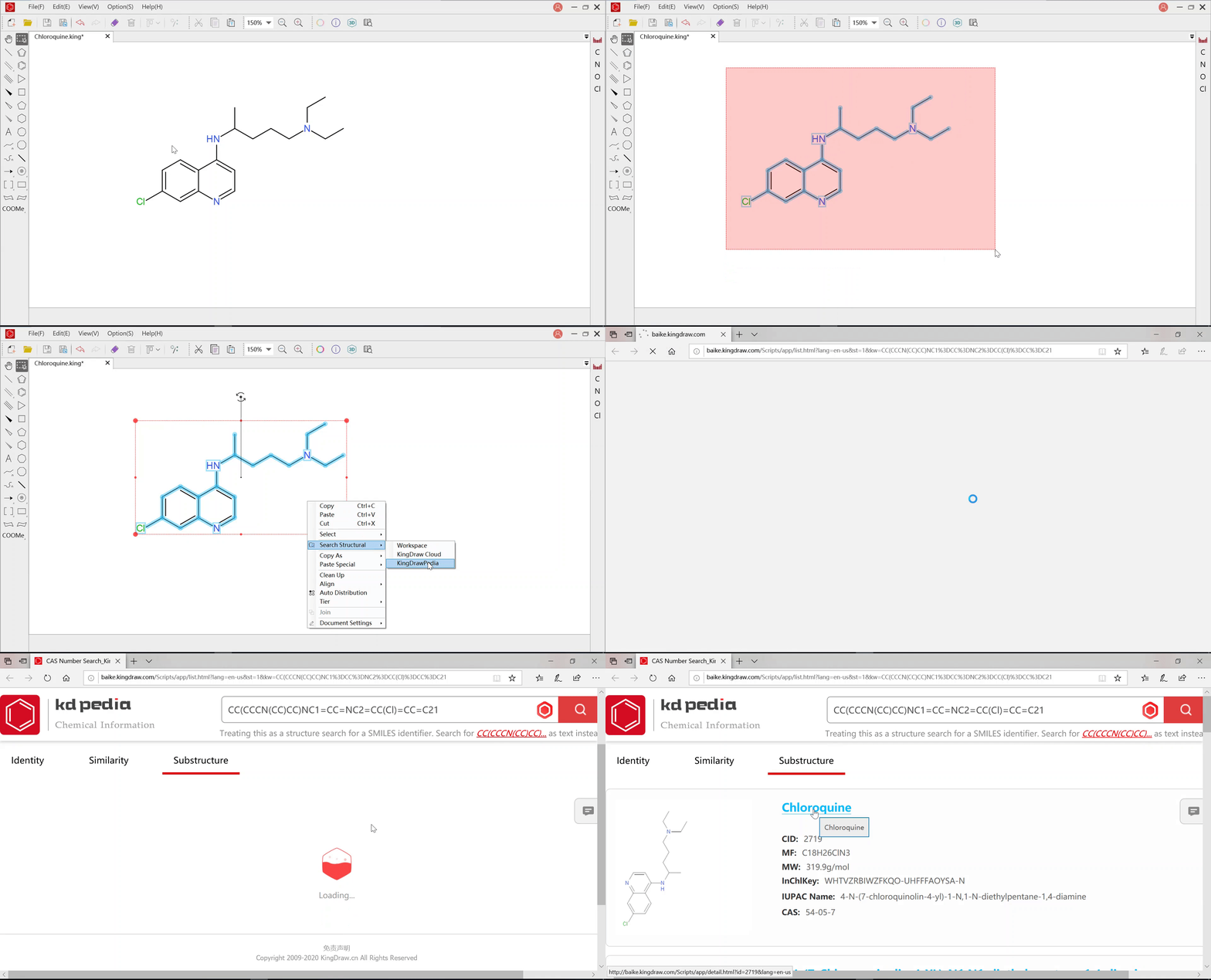
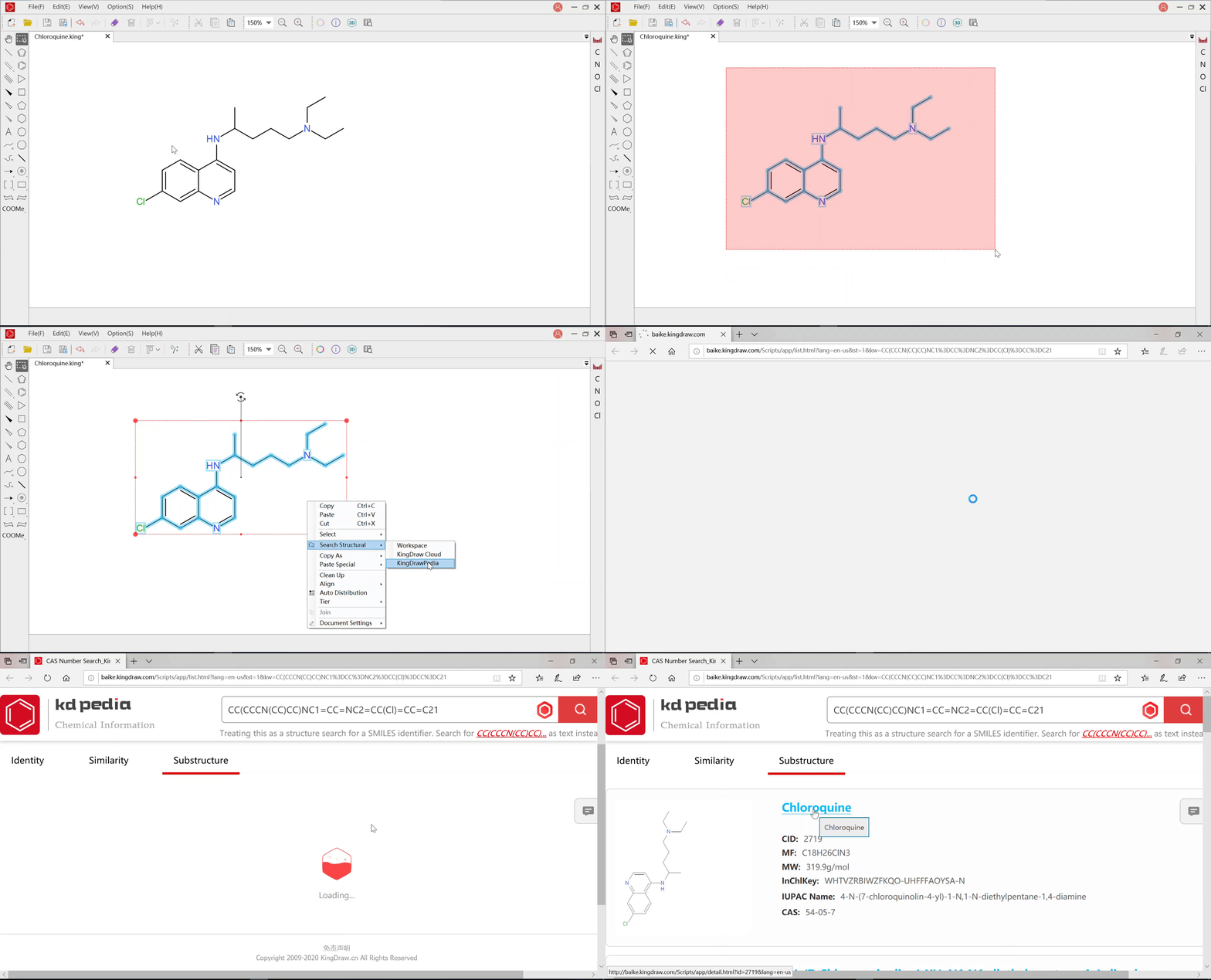
Image for post

Enter search interface to search for compounds

Click the [KDpedia] button, and the search page will pop up.

Image for post

Currently supports multiple search methods such as searching by structure, SMILES, molecular, CAS number, InChl Key, digital ID CID, and text search.

The structural formula can be imported into KingDraw by copying the SMILES and IUPAC names.

• Copy SMILES as structure

Search for compounds in the [KDpedia], copy the SMILES in the compound information, right-click on the KingDraw canvas, and select [Paste Special] → [SMILES], and the corresponding structural formula will be generated.
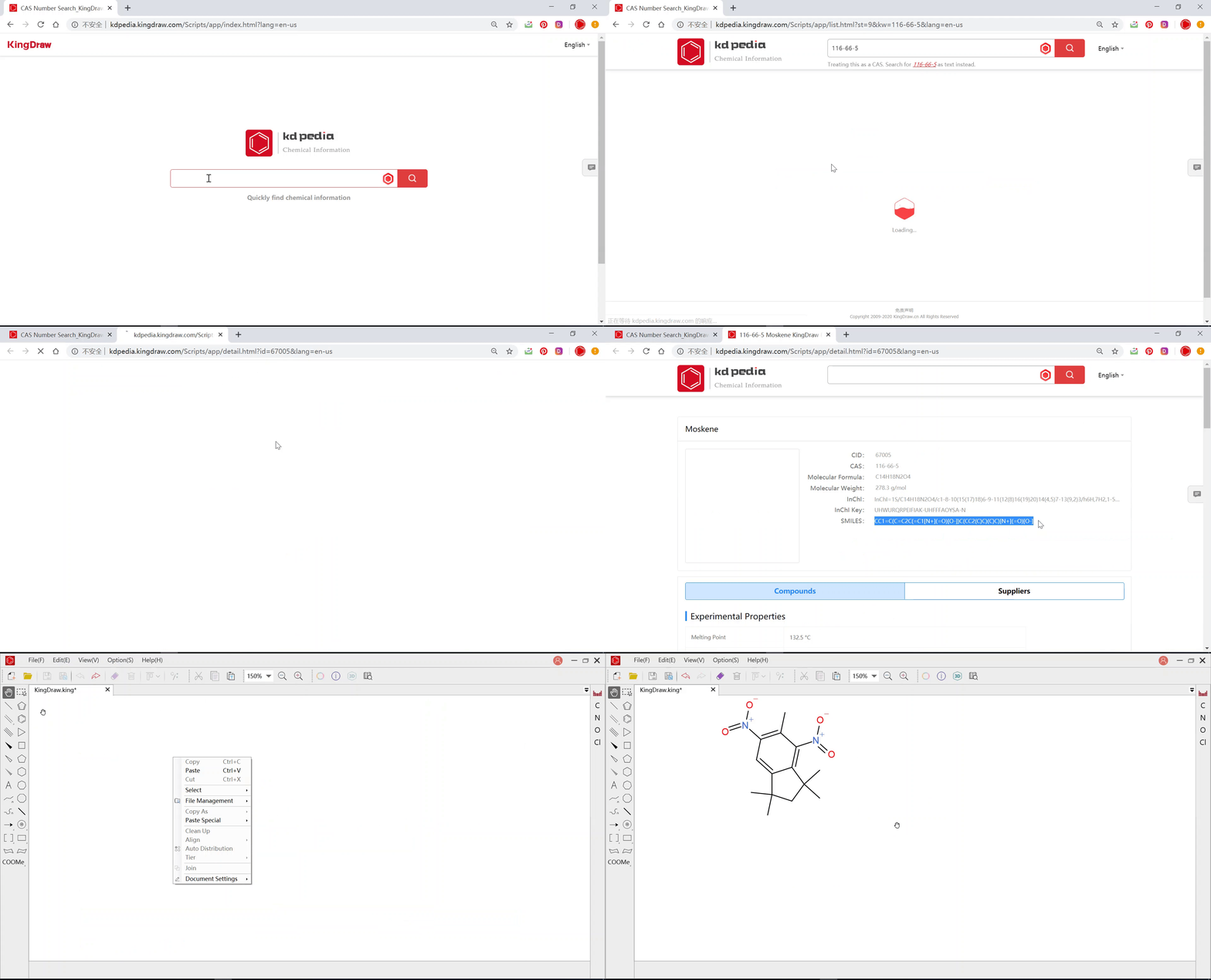
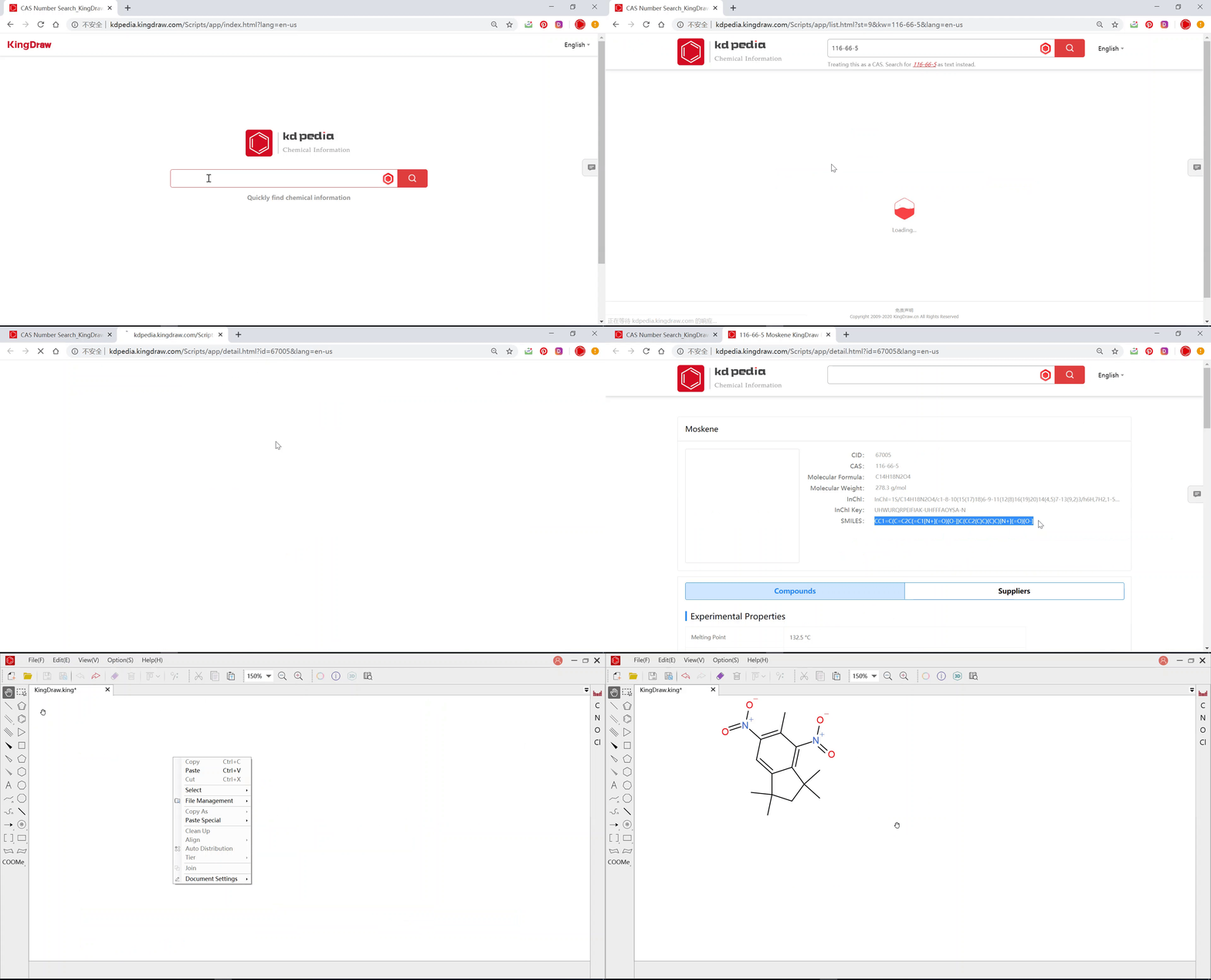
Image for post

• Copy IUPAC name as structure

Search for compounds in the [KDpedia], copy the IUPAC name in the compound information, right-click, and select [Paste Special] → [IUPAC Name as Structure].
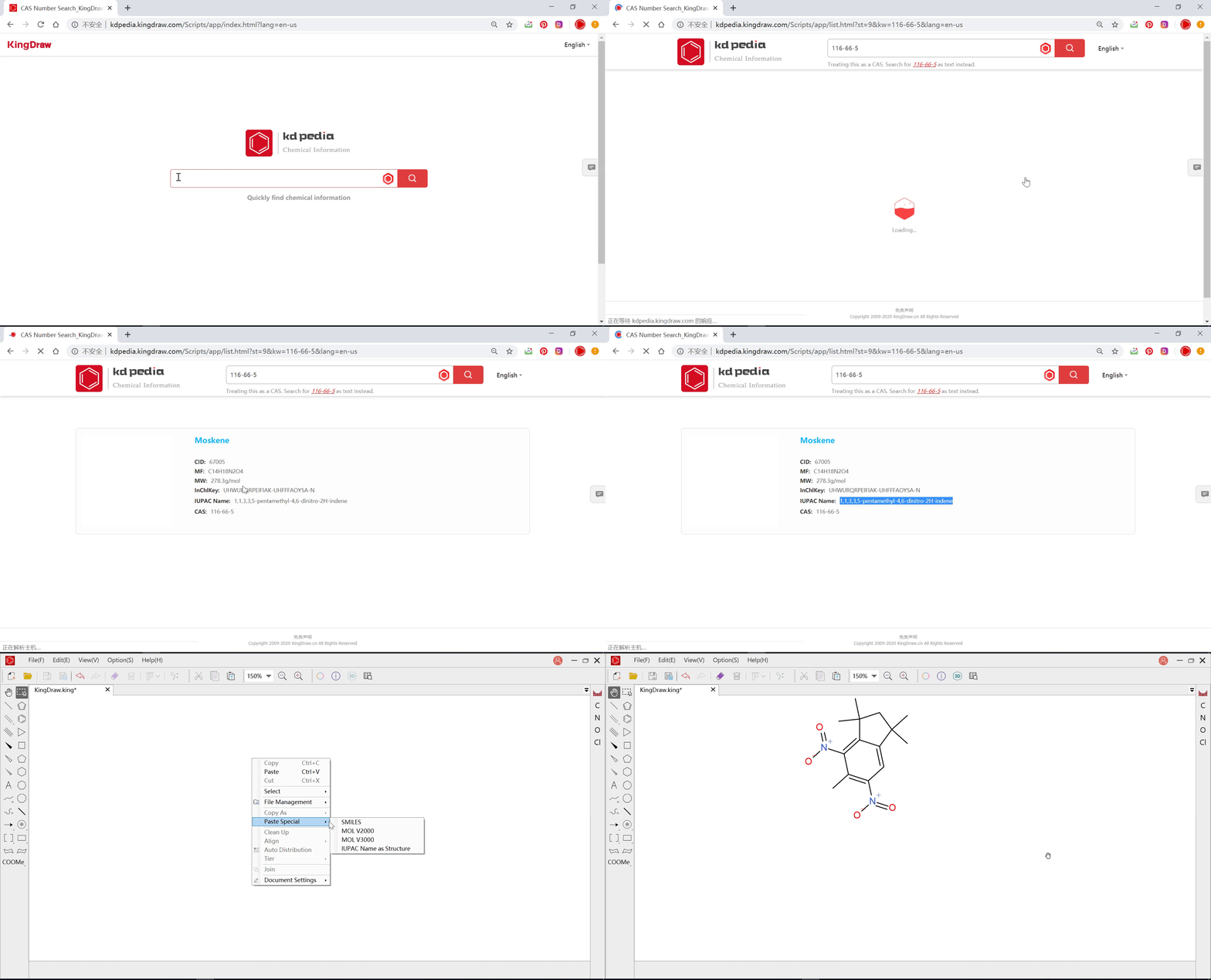
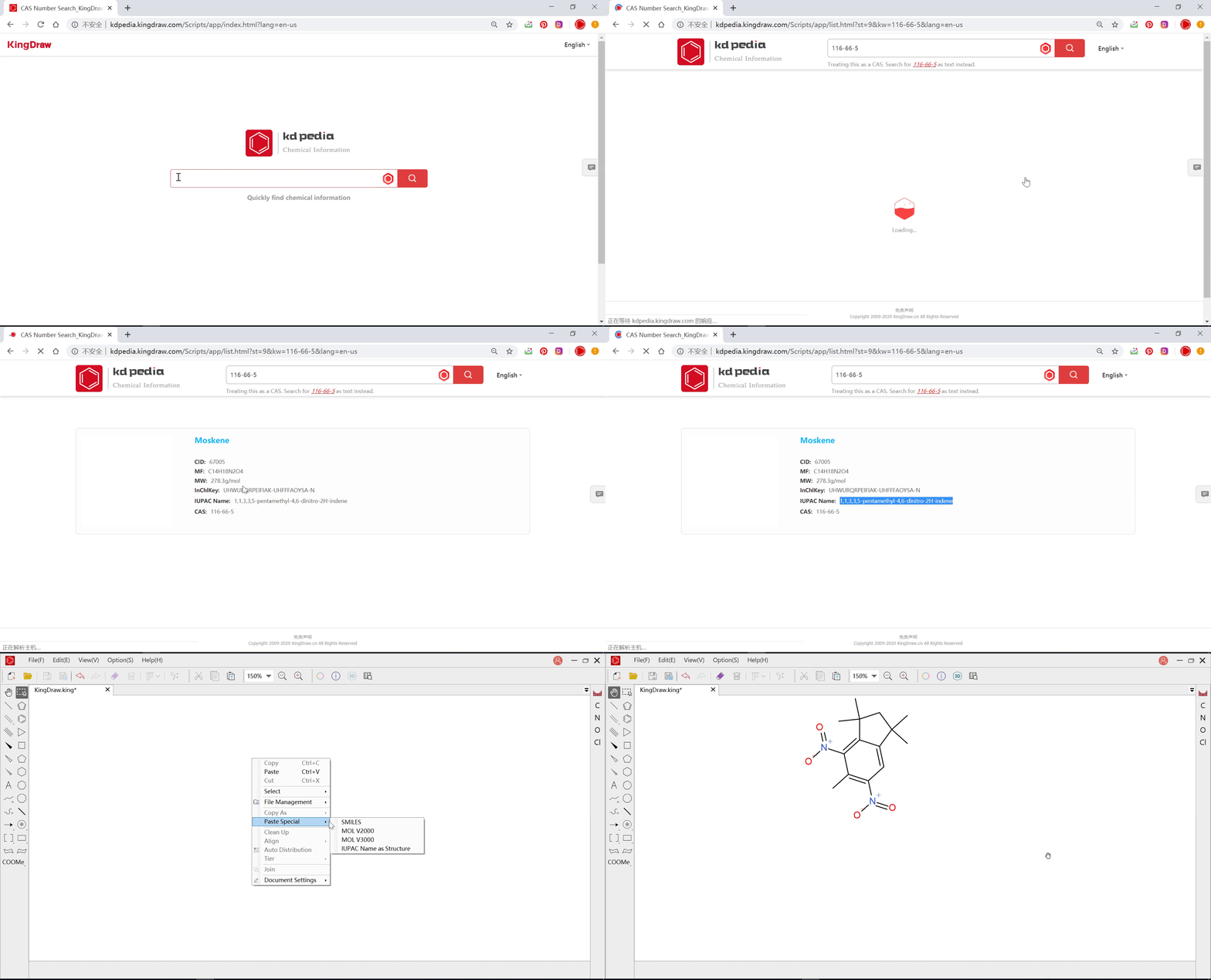
Image for post 

KingDraw Tutorial-KDpedia on Phones

 Since the KDpedia web version and PC version came online, it has received everyone’s support. Many users hope to experience this function in the KingDraw APP.

After drawing the structural formula, as long as you use a small hand, you can use the structure to find various compound information. It is really exciting to think about it ~

Image for post

At present, the new version of the newly added KDpedia-KingDraw APP v2.3.0 has been officially released. You can update it through the software prompt, or you can search for “KingDraw” to download and install in the Google play and App store. Welcome everyone to share your using experience!

Image for post

What is KDpedia

The KDpedia is in the upper right corner of the KingDraw APP drawing board. It supports selection to query, and also tap to search.

Image for post

KDpedia contains 150 million compound data, supports detailed compound information query, and 7.5 million compound information is related to suppliers worldwide, which is convenient for query and purchase.

Query compound information by structure

To use the structure to query compound information, just use the [selection tool] on the drawing board to select it, and then click the [KDpedia] button.The information page will show the result.

Image for post

Search Compounds in KDpedia

Click on the [KDpedia] button on the right side of the drawing board to enter the search interface. We can search by name, IUPAC name, molecular formula, CAS number, InChl Key, CID, SMILES, etc.


Monday, December 23, 2019

Update of the KingDraw V 2.2.0


KingDraw V2.2.0, which was launched in early December, adds a lot of features, as follows:
1. Increase the Chair Cyclohexane
Add a left and right Chair Cyclohexane to the lower toolbar.


2. Add Ion bond, Dative bond, Hydrogen bond, Wavy bond, Bold double bond, Dashed double bond

Ion bond, Dative bond, hydrogen bond, wavy bond, bold double bond, dashed double bond are added, and the double bond can be pressed to view.

3. Increase Lone Pair, Radical
In the charge tool, Lone Pair and Radicals are added. Press and hold the charge tool to view.

4. Add 3D model display style

On the base of the existing ball-and-stick model, the 3D model display has two more styles of space-filling model and stick-and-stick model.
5. Share file by copy links

Based on the original WeChat and QQ sharing, the direct copy link is added. Users can quickly view the structure through the link.
6. Optimize the export image feature
1) Remove the error message from exporting.
2) Add jpg format to the save format of [Save As], which is convenient for users to use for viewing and sharing.

7. Optimized the display style of the arrows, brackets, and shapes in the flowchart
The arrows, brackets, and shapes involved in the flowchart were redesigned and the presentation was optimized.

8. Add Automatic Distribution to the upper toolbar
The upper toolbar automatically adjusts the number of display buttons based on the width of the screen. Some of the function buttons will be automatically received in "..." on small screen.
9. Optimize text tool features
1) In the text tool, copy and paste operations are supported by long press.

2) Fix the display problem of Symbol font.

10. Adjust the position of [Proof and Zoomer].
Add [Proof and Zoomer] menu in [Settings] as separate part.


Thursday, October 31, 2019

KingDraw Tutorial- How to Use the Copy Tool?


When drawing complex structures and flowcharts, the copy tool can greatly improve our drawing efficiency. Today, let's take a look at the specific use of the copy tool~

How to use the copy tool
The copy tool is in the upper part of the drawing board, which helps us copy elements, including structure, text, flowcharts, and more. Need to be used together with the marquee tool.

Instructions:
1. First use the [Marquee Tool] to select the part you want to copy;
2. After selecting and clicking [Copy Tool], the copy will be successfully done;
3. Click anywhere on the drawing board to paste.


Support multiple pastes
After the copy is complete, you can repeat the paste by clicking the drawing board multiple times.


Support cross-file copying in APP
After copying, you can paste it in other files in the KingDraw APP.


Support for cross-software replication of text
After copying the text in the structure file, you can enter other software to paste. Text only so far.


Tuesday, October 29, 2019

KingDraw Tutorial - How to Name a Compound Fastly?


Naming compounds is a problem that every chemist has, especially when it comes to complex compounds.


For the convenience of users, KingDraw has built-in IUPAC naming rules, which can be easily named for structure, or can be converted by IUPAC naming.

IUPAC name to structure

To convert the structure with the IUPAC name, just click [···] in the toolbar to open more tools, select [Name→Structure], enter the IUPAC name of the compound, and click Confirm. The corresponding structural formula will be converting on the drawing board.

Structure to IUPAC name

To name the structure, you need to first select the structure using the [Marquee Tool], and press and hold any position in the structure to quickly select it. Click [···] in the toolbar to select [Structure→Name], and the corresponding IUPAC name will be displayed in text below the structure.
If you need to copy the naming, you can use the marquee tool to select the name, and click [Copy Tool] to copy successfully. It can be used within KingDraw, or it can be copied and pasted in other programs.


Monday, October 28, 2019

KingDraw Tutorial -How to use the Eraser tool?


The function of the KingDraw APP is very comprehensive, and each feature has its own unique value. Today we will introduce you to the use of the eraser tool.


The eraser tool can be used to delete specified content on the drawing board, including structural formulas, elements, text, parentheses, flowcharts, and more.

Press and hold the eraser tool to switch to the clear tool. Click the Clear tool to clear everything on the drawing board with one click.


Eraser tool
 [Eraser Tool], it is used when deleting the smallest drawing element. If you want to delete more, you need to use [Marquee Tool] to select it, then click the Eraser tool to delete it.


Delete single drawing element
Use the Eraser tool to click on the element you want to delete, such as elements, single bonds, and text etc.


Change the type of bond
Use the eraser tool to click the double bond in the structure, the double bond will become   single. For the same reason, click the three bonds to make it become a double.


Click on the connection point to delete the adjacent chemical bond
Use the Eraser tool to click on the any connection point in the structure and all the chemical bonds connected to the connection point will be deleted.


Delete part of the structure
Use the marquee tool, select the part you want to delete, and then click the Eraser tool to delete the selection.


Clear tool

Long press and hold the eraser tool to switch to the clear tool. Click the clear tool to empty everything on the drawing board.


If you need to withdraw the delete or clear operation, you can click the [Undo] button in the upper right corner of the drawing board.

Friday, October 25, 2019

KingDraw Tutorial- "Group Tool"


In the process of studying molecular structure, we often use some fixed abbreviations to replace common groups to simplify the molecular structure.

KingDraw provides you with common groups and custom group drawing for your convenience. You can select common groups by the [Group Tool]. When the common groups provided do not meet your needs, you can also freely create the groups you need by adding custom groups.

How to use the group

Add common groups
Click the [Group Tool] on the right to open the "Common Groups" interface. Click on the group you want to select. Click on the desired position in the drawing board and the group will automatically connect to the structure.

Find more groups
Click [more] to enter the "Group Search" interface, you can view more groups. Click [Quick Search] to quickly search for a group by name.

Custom group

If the existing group does not meet the drawing requirements, you can customize the adding group.

Click [Group Tool] → [more] to enter the "Group Search" interface.
Click the [+] sign in the upper right corner to enter the group drawing and draw the desired group.
After the drawing is complete and the group name is set, click the “Save” button and the drawn group will appear in the “     Quick search” interface.

When the group is drawn, if it needs to be connected to other structures, you need to mark the connected endpoints with "R".

Common operations for group tools


On the “Quick search” interface, the red box selected group is “Common Group”. Press and hold any group to pop up the operation menu.

Set/cancel common groups
Long press [Using Group] and select [Set as Common] in the menu to set the group as common.

Press and hold [Common Group] and select [Cancel Common] in the menu to cancel the group from the common list.

Similarly, you can also uncheck the commonly used groups by clicking the button in the upper right corner and clicking [X] after the group.


Edit group
Press and hold the group and select [Edit] in the pop-up list to re-edit the group.


Delet group
Press and hold the group and select [Delete] in the pop-up list to delete the group.


KingDrawTutorial丨How to Beautify Chemical Structures? A KingDraw “Magic Book” For You.

How to dr aw   a   s tan dar d  a nd be a utif u l s tr uc ture ? 👀💬 It  is a problem that plagues many novice users . In thi s ‘ Ma gic B...