Showing posts with label 化学. Show all posts
Showing posts with label 化学. Show all posts
Wednesday, February 22, 2023

Monday, December 23, 2019
Update of the KingDraw V 2.2.0
KingDraw V2.2.0, which was launched in early December, adds
a lot of features, as follows:
1. Increase the Chair Cyclohexane
Add a left and right Chair Cyclohexane to the lower toolbar.

2. Add Ion bond, Dative bond, Hydrogen bond, Wavy bond, Bold
double bond, Dashed double bond

Ion bond, Dative bond, hydrogen bond, wavy bond, bold double
bond, dashed double bond are added, and the double bond can be pressed to view.
3. Increase Lone Pair, Radical
In the charge tool, Lone Pair and Radicals are added. Press
and hold the charge tool to view.

4. Add 3D model display style

On the base of the existing ball-and-stick model, the 3D
model display has two more styles of space-filling model and stick-and-stick
model.
5. Share file by copy links

Based on the original WeChat and QQ sharing, the direct copy
link is added. Users can quickly view the structure through the link.
6. Optimize the export image feature
1) Remove the error message from exporting.
2) Add jpg format to the save format of [Save As], which is
convenient for users to use for viewing and sharing.

7. Optimized the display style of the arrows, brackets, and shapes
in the flowchart
The arrows, brackets, and shapes involved in the flowchart
were redesigned and the presentation was optimized.

8. Add Automatic Distribution to the upper toolbar
The upper toolbar automatically adjusts the number of
display buttons based on the width of the screen. Some of the function buttons
will be automatically received in "..." on small screen.
9. Optimize text tool features
1) In the text tool, copy and paste operations are supported
by long press.

2) Fix the display problem of Symbol font.

10. Adjust the position of [Proof and Zoomer].
Add [Proof and Zoomer] menu in [Settings] as separate part.

Thursday, October 31, 2019
KingDraw Tutorial- How to Use the Copy Tool?
When drawing complex structures and flowcharts, the copy
tool can greatly improve our drawing efficiency. Today, let's take a look at
the specific use of the copy tool~
How to use the copy tool
The copy tool is in the upper part of the drawing board,
which helps us copy elements, including structure, text, flowcharts, and more.
Need to be used together with the marquee tool.

Instructions:
1. First use the [Marquee Tool] to select the part you want
to copy;
2. After selecting and clicking [Copy Tool], the copy will be
successfully done;
3. Click anywhere on the drawing board to paste.

Support multiple pastes
After the copy is complete, you can repeat the paste by
clicking the drawing board multiple times.

Support cross-file copying in APP
After copying, you can paste it in other files in the
KingDraw APP.

Support for cross-software replication of text
After copying the text in the structure file, you can enter
other software to paste. Text only so far.

Tuesday, October 29, 2019
KingDraw Tutorial - How to Name a Compound Fastly?
Naming compounds is a problem that every chemist has,
especially when it comes to complex compounds.

For the convenience of users, KingDraw has built-in IUPAC
naming rules, which can be easily named for structure, or can be converted by
IUPAC naming.
IUPAC name to structure

To convert the structure with the IUPAC name, just click
[···] in the toolbar to open more tools, select [Name→Structure], enter the
IUPAC name of the compound, and click Confirm. The corresponding structural
formula will be converting on the drawing board.
Structure to IUPAC name

To name the structure, you need to first select the
structure using the [Marquee Tool], and press and hold any position in the
structure to quickly select it. Click [···] in the toolbar to select [Structure→Name], and
the corresponding IUPAC name will be displayed in text below the structure.
If you need to copy the naming, you can use the marquee tool
to select the name, and click [Copy Tool] to copy successfully. It can be used
within KingDraw, or it can be copied and pasted in other programs.

Monday, October 28, 2019
KingDraw Tutorial -How to use the Eraser tool?
The function of the KingDraw APP is very comprehensive, and
each feature has its own unique value. Today we will introduce you to the use
of the eraser tool.

The eraser tool can be used to delete specified content on
the drawing board, including structural formulas, elements, text, parentheses,
flowcharts, and more.
Press and hold the eraser tool to switch to the clear tool.
Click the Clear tool to clear everything on the drawing board with one
click.

Eraser tool
[Eraser Tool], it is
used when deleting the smallest drawing element. If you want to delete more,
you need to use [Marquee Tool] to select it, then click the Eraser tool to
delete it.
Delete single drawing element
Use the Eraser tool to click on the element you want to
delete, such as elements, single bonds, and text etc.

Change the type of bond
Use the eraser tool to click the double bond in the
structure, the double bond will become single. For the same reason, click the three bonds
to make it become a double.

Click on the connection point to delete the adjacent
chemical bond
Use the Eraser tool to click on the any connection point in
the structure and all the chemical bonds connected to the connection point will
be deleted.

Delete part of the structure
Use the marquee tool, select the part you want to delete,
and then click the Eraser tool to delete the selection.

Clear tool
Long press and hold the eraser tool to switch to the clear
tool. Click the clear tool to empty everything on the drawing board.

If you need to withdraw the delete or clear operation, you
can click the [Undo] button in the upper right corner of the drawing board.
Friday, October 25, 2019
KingDraw Tutorial- "Group Tool"
In the process of studying molecular structure, we often use
some fixed abbreviations to replace common groups to simplify the molecular
structure.
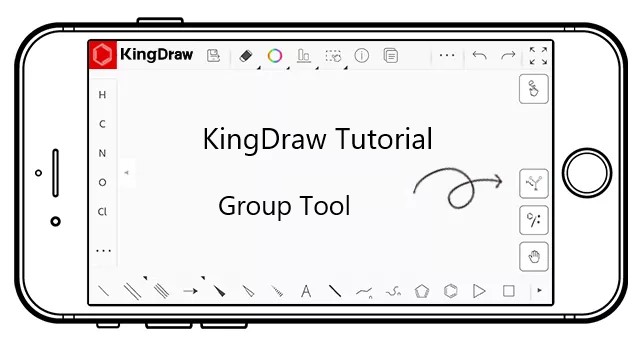
KingDraw provides you with common groups and custom group
drawing for your convenience. You can select common groups by the [Group Tool].
When the common groups provided do not meet your needs, you can also freely
create the groups you need by adding custom groups.
How to use the
group
Add common groups
Click the [Group Tool] on the right to open the "Common
Groups" interface. Click on the group you want to select. Click on the
desired position in the drawing board and the group will automatically connect
to the structure.

Find more groups
Click [more] to enter the "Group Search"
interface, you can view more groups. Click [Quick Search] to quickly search for
a group by name.

Custom group
If the existing group does not meet the drawing
requirements, you can customize the adding group.


Click [Group Tool] → [more] to enter the "Group
Search" interface.
Click the [+] sign in the upper right corner to enter the
group drawing and draw the desired group.
After the drawing is complete and the group name is set,
click the “Save” button and the drawn group will appear in the “ Quick search” interface.
When the group is drawn, if it needs to be connected to
other structures, you need to mark the connected endpoints with "R".
Common operations for
group tools
On the “Quick search” interface, the red box selected group
is “Common Group”. Press and hold any group to pop up the operation menu.
Set/cancel common groups
Long press [Using Group] and select [Set as Common] in the
menu to set the group as common.

Press and hold [Common Group] and select [Cancel Common] in
the menu to cancel the group from the common list.


Similarly, you can also uncheck the commonly used groups by
clicking the button in the upper right corner and clicking [X] after the group.

Edit group
Press and hold the group and select [Edit] in the pop-up
list to re-edit the group.

Delet group
Press and hold the group and select [Delete] in the pop-up
list to delete the group.

Monday, October 21, 2019
KingDraw Tutorial - Alignment Tool
KingDraw Tutorial - Alignment Tool
When drawing a structure, the beauty and order
of the screen layout is also very important. The alignment tool in KingDraw
allows us to easily align, center, and flip the contents of the board without
the aid of lines.

Features
The alignment tool is currently available
in the upper ribbon of the KingDraw APP. It supports 10 types of alignment and
can be selected by long press.
Instructions
The alignment tool also needs to be used
with the marquee tool.

When adjusting the structure, we first use
the [Marquee Tool] to select the part that needs to be adjusted. Then long
press [Alignment Tool] and select the desired alignment.

The selected alignment will become the
default alignment of the system. The next time you use the same alignment, you
can use it directly after clicking the box.
Operations


How to Query Chemical Property in the KingDraw Tutorial?
For the convenience of users, KingDraw
provides chemical property feature, and you can view the properties of
compounds in the drawing board with a simple click.

Chemical property feature includes decimals,
formula, exact mass, molecule weight, element analysis, m/z.
Query chemical properties for all
structural formulas in the drawing board
Do not make any operations the drawing board,
just click [View Properties] to view the compound properties of all structural
formulas on the drawing board.


Query the chemical properties of some
structural formulas in the drawing board
Use [MarqueeTool] to select a structure or
a part in the drawing board and click [Chemical Property] to view the chemical
property of the selected part.


Tips:
The system automatically recognizes the
drawn elements, bonds, rings, long chains, folded chains, charges, and groups
as valid chemical property.
Wednesday, October 16, 2019
KingDraw Tutorial -Element Feature Introduction

The element feature is the most commonly
used function area when we draw the structure. Today we will introduce you in
detail, the function and usage of the Element Area. Come on!
Element Feature Introduction

The element area is located on the left
side of the drawing board. You can select the hidden or displayed it by
clicking the [◀] button on the
left.
The commonly used elements are displayed in
the element area and can be used with a single click. For elements that are not
commonly used, you can click the [···] button below to enter the periodic table
of elements for selection.

Add and remove common elements
1. Adding common elements

Common elements of the element selection
area can be added or removed according to your needs. Just click [···] into the
periodic table of elements, and long press the elements you want to add them as
common elements.
2. Removal of common elements

If you remove an element from the element area,
there are two ways -
• Long press on the selected element in the
periodic table of elements, which will be removed from the atomic selection
area.
• In the periodic table of elements, click
on the button in the upper right corner and click on the [X] after the element
to delete the atom.
H atom is automatically trimmed and can
be adjusted using text tools
The system automatically blends the H atoms
of the element according to the placement. If the number of atoms after the
trim is not what you want, you can use the text tool to select the element and
modify it.

Subscribe to:
Posts (Atom)
KingDrawTutorial丨How to Beautify Chemical Structures? A KingDraw “Magic Book” For You.
How to dr aw a s tan dar d a nd be a utif u l s tr uc ture ? 👀💬 It is a problem that plagues many novice users . In thi s ‘ Ma gic B...

-
 The element feature is the most commonly used function area when we draw the structure. Today we will introduce you in detail, the fun...
 -
 Drawing any chemical structures, you cannot do without a variety of chemical bonds. KingDraw build a rich drawing element. How to use the ...
 -
How to dr aw a s tan dar d a nd be a utif u l s tr uc ture ? 👀💬 It is a problem that plagues many novice users . In thi s ‘ Ma gic B...
